
Overview
Wrong size is one of the top reasons apparel shoppers return online orders. Size Chart & Fit Calculator for WooCommerce by Centrioz shows an interactive size guide, recommends a size with Find My Fit, can apply that size on variable products, and optionally collects Made-to-Measure measurements with a fee.
- Free — up to 3 Chart Rules, core storefront features, fixed Made-to-Measure fee, CSV tools, shortcode and block.
- Pro — standalone plugin with unlimited rules, targeting, appearance, richer fees, scans, profiles, and Insights. Pro includes the Free core and deactivates Free if both are present.
Outcomes merchants care about: fewer sizing tickets, clearer product pages, one-click size application, and optional custom-fit revenue on the same SKU.
Requirements
- WordPress 6.4 or newer
- PHP 7.4 or newer
- WooCommerce 8.0 or newer (active)
- Compatible with HPOS and Cart / Checkout Blocks
- Classic themes and block themes (use shortcode or block if the Size Guide button is missing)
Install Free & Pro
Free
- Install from WordPress.org when the listing is approved, or upload the plugin ZIP under Plugins → Add New → Upload.
- Activate Size Chart & Fit Calculator for WooCommerce.
- Confirm WooCommerce is active.
- Open Size Chart & Fit Calculator → Chart Rules in wp-admin.
Pro (standalone)
- Upload and activate Size Chart & Fit Calculator Pro.
- Pro includes the size-chart core. You do not need Free active at the same time — Pro deactivates Free if both are present.
- Complete any license steps shown for your sales channel (for example LemonSqueezy or WooCommerce.com Helper).
- Chart Rules become unlimited and Pro tools appear in the admin.
Admin tour
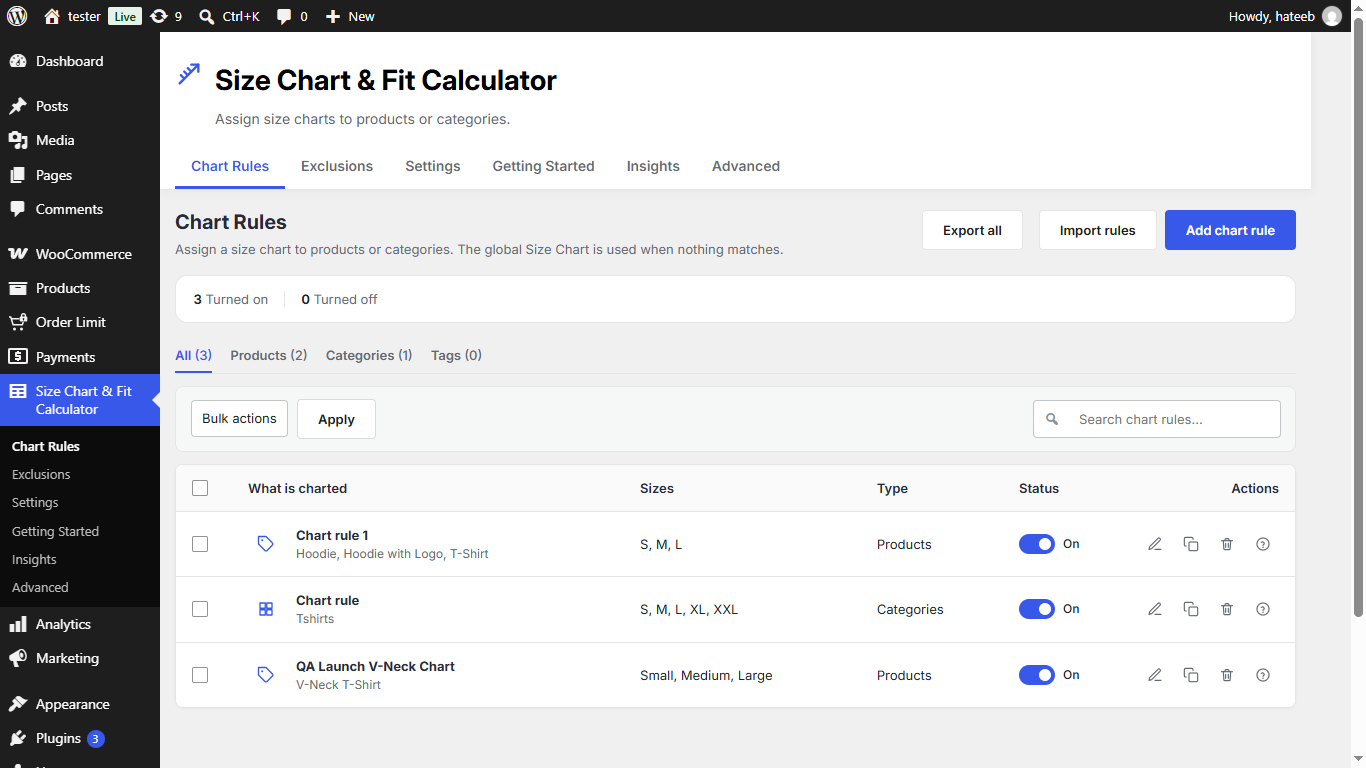
In wp-admin, open Size Chart & Fit Calculator. Main areas:
- Chart Rules — create and edit size charts; assign to products or categories.
- Exclusions — hide the guide on selected products without deleting a rule.
- Settings — global defaults for the Size Guide experience.
- Getting Started — quick setup checklist for new stores.
- Insights — Pro analytics for sizing and Made-to-Measure activity.
- Advanced — Pro licensing and advanced options.
Create your first Chart Rule
Chart Rules decide which size chart appears on which products. Free allows up to 3 rules. Pro removes that limit.
- Go to Size Chart & Fit Calculator → Chart Rules.
- Click Add chart rule (or open an existing rule to edit).
- Enter a clear Name (example: Mens T-Shirt Chart).
- Choose Assign to: Products or Categories, then search and select items.
- Add size rows with at least chest and waist columns. Add hips if you want Find My Fit to use hips.
- Optional: add Shoulder, Sleeve, or other columns your brand needs.
- Turn Rule is on, then click Save rule.
- Open a matching product on the storefront and click Size Guide to verify.
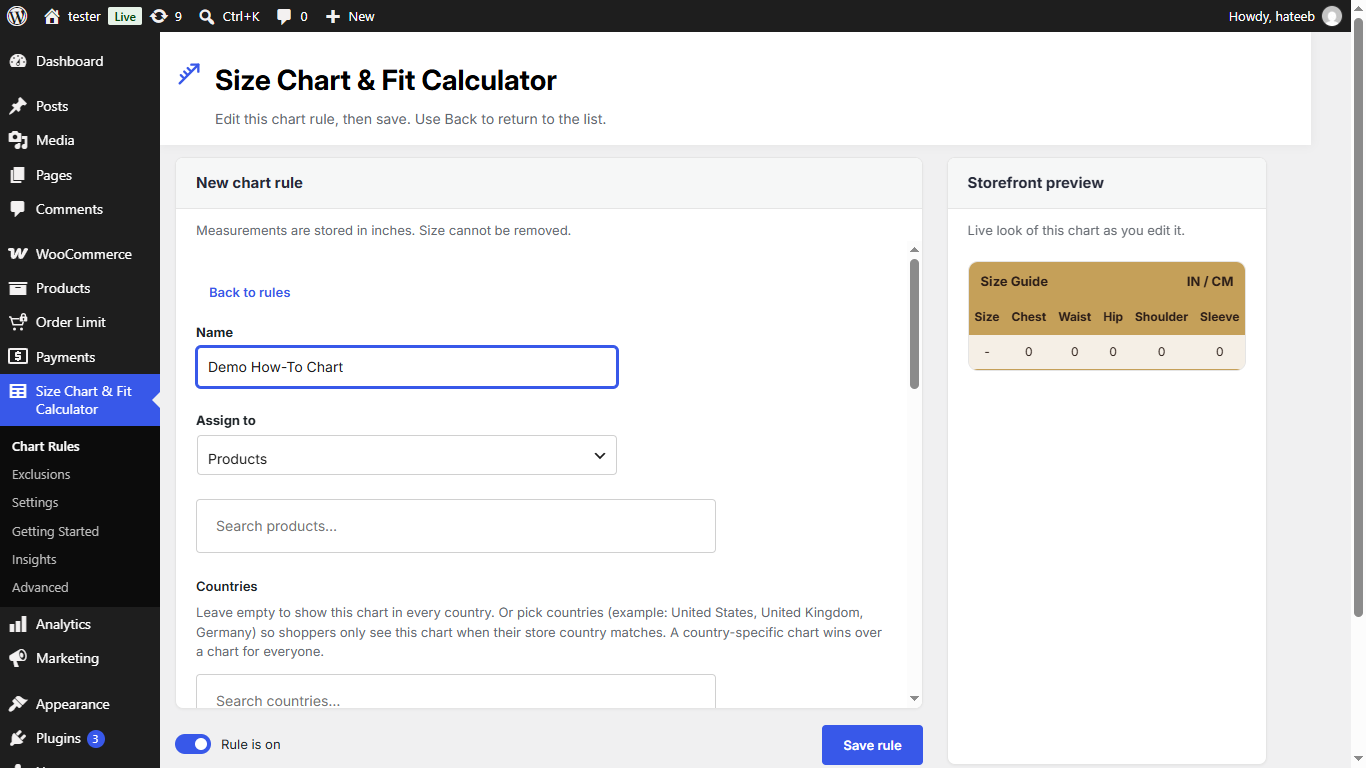
Tip: Measurements are stored in inches in the admin. Shoppers can still toggle Inches ↔ CM on the storefront.
Assign products, categories & exclusions
Assign a rule to specific products, or to a category so every product in that category inherits the chart. Prefer category rules for large catalogs; use product rules for exceptions and hero SKUs.
Use Exclusions to hide the Size Guide on selected products without deleting the parent rule — useful for accessories or one-size items that share a category with sized apparel.
If more than one rule could match, check which rule is On, review exclusions, and (on Pro) country/tag targeting. Keep names descriptive so your team can audit rules quickly.
Storefront Size Guide
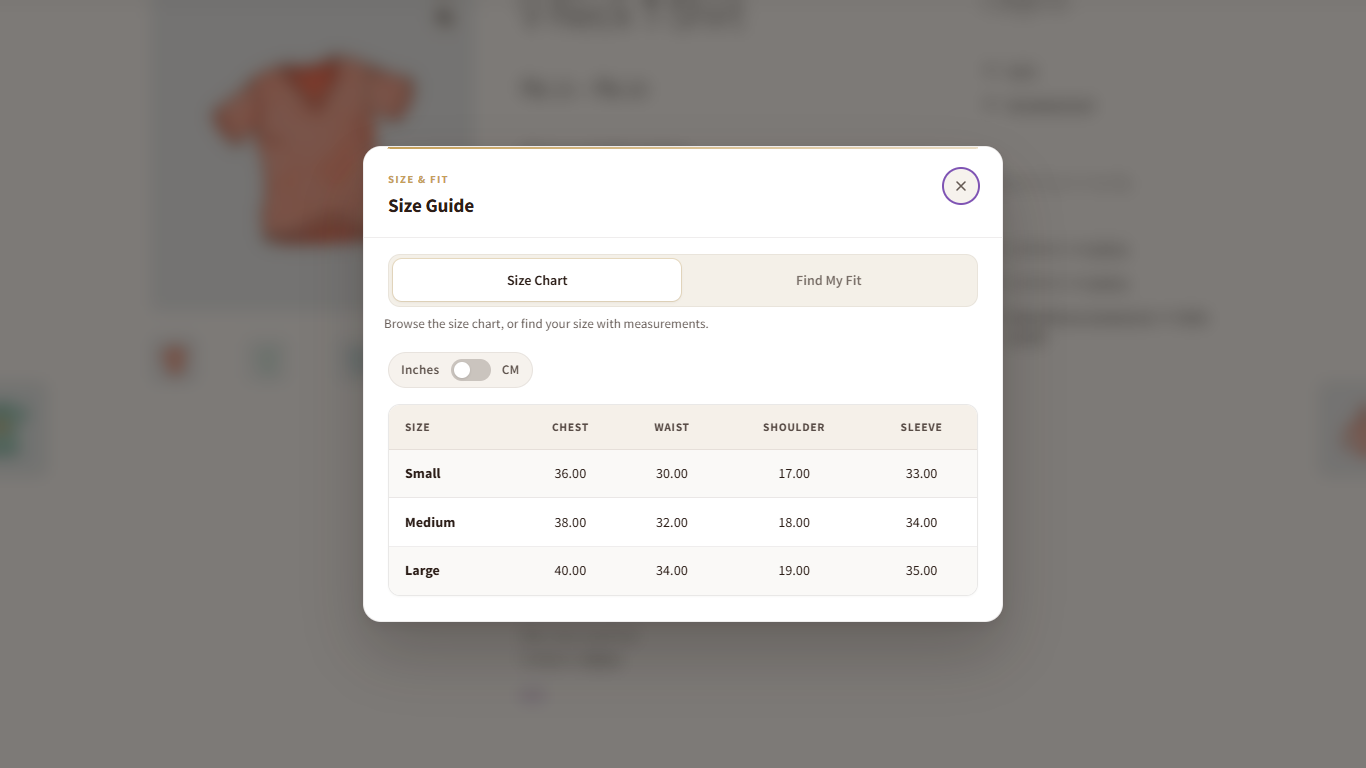
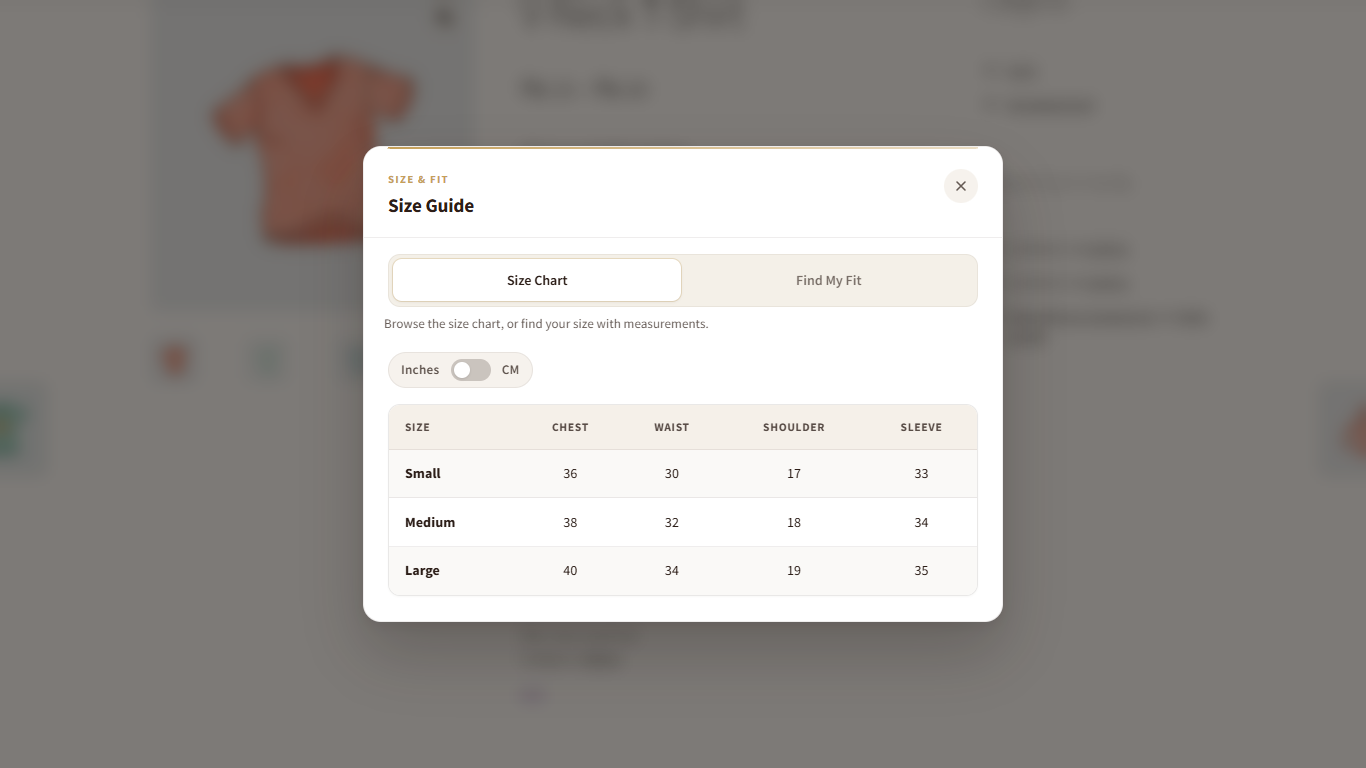
On matching products, shoppers see a Size Guide button near the add-to-cart area (exact placement depends on the theme). Clicking it opens a polished popup modal with the chart table and optional Find My Fit panel.
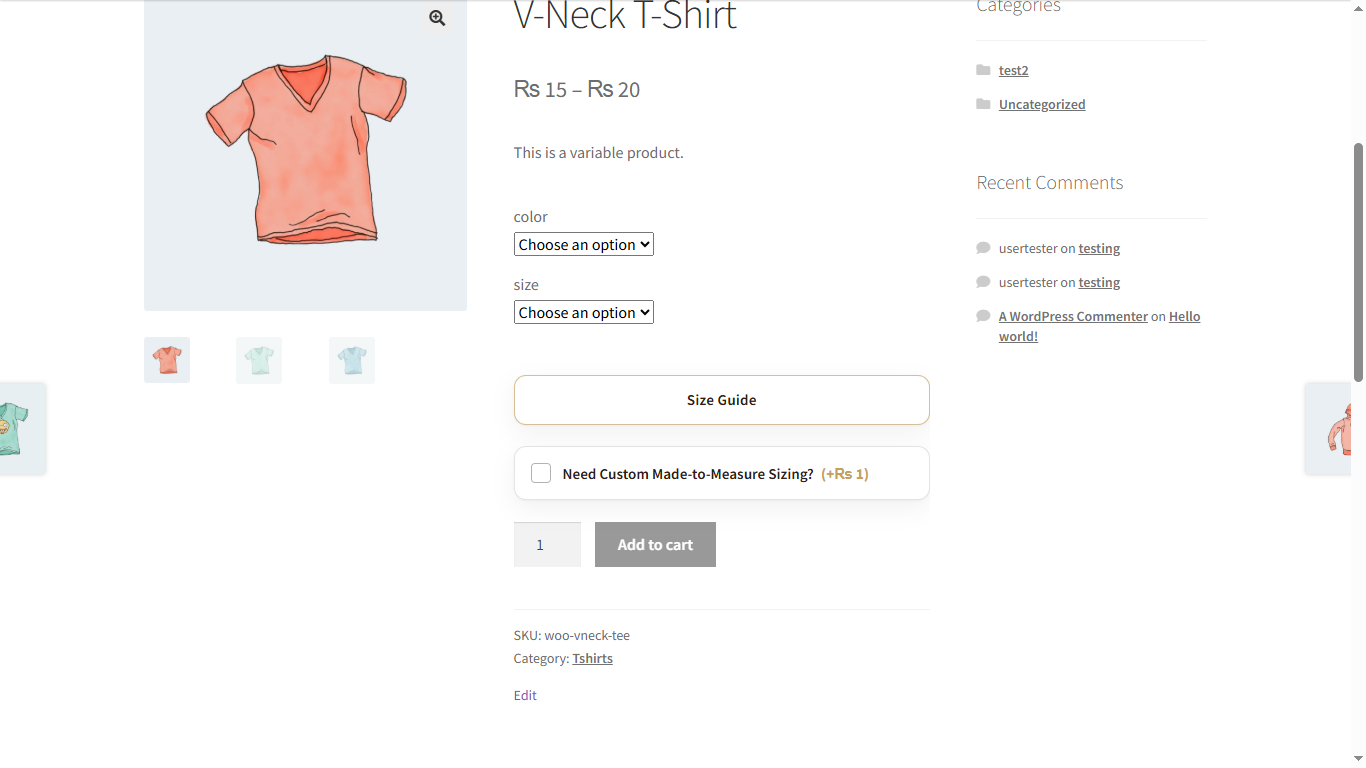
If your block theme or page builder does not print the button, use the shortcode or Size Guide block below. Shop managers may see an on-page tip when the button is missing.
Inches / CM conversion
Inside the Size Guide modal, shoppers switch units with the Inches / CM toggle. The table updates live — you do not need two separate charts for unit systems.
Find My Fit
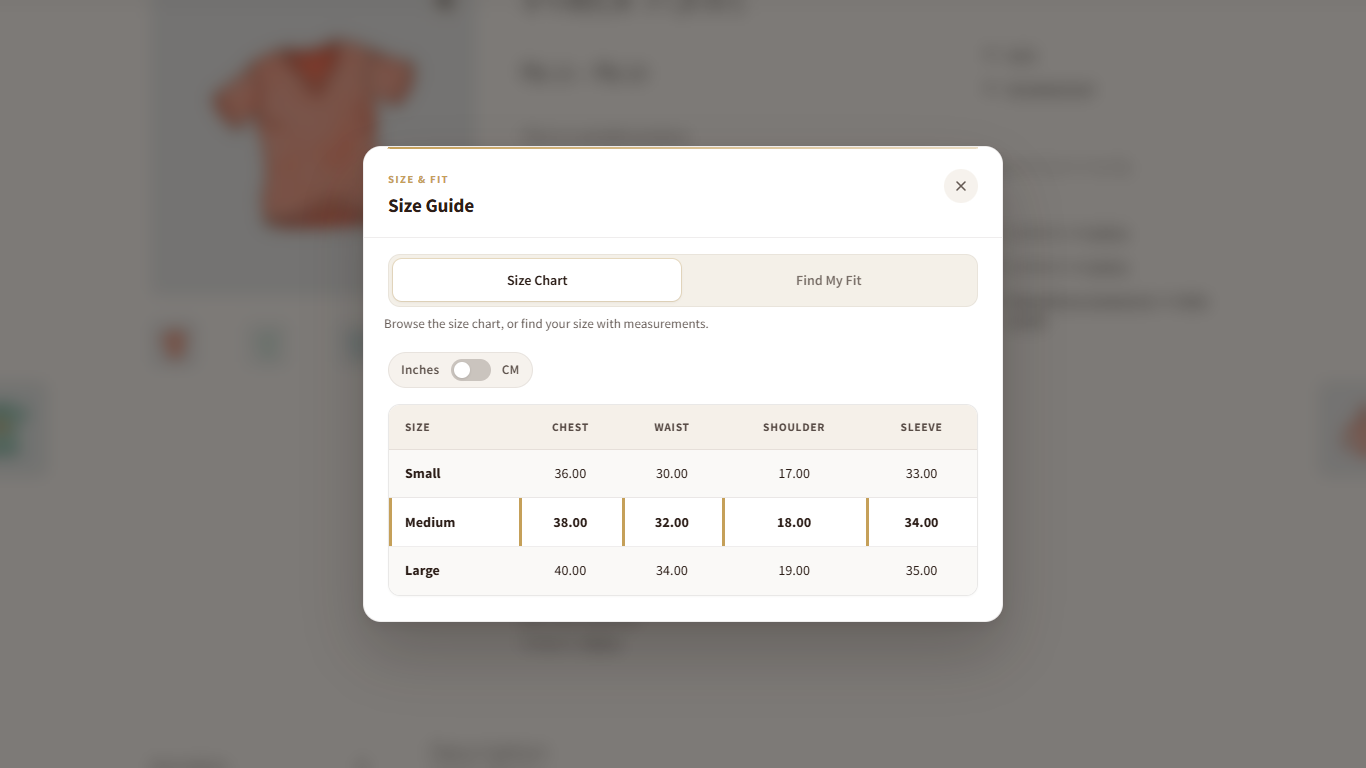
Shoppers enter chest and waist (and hips when the chart includes them), choose a fit preference (snug / regular / relaxed), and get a recommended size. The matching row can be highlighted in the chart for confidence.
- Ask shoppers to measure over light clothing for consistency.
- Include Hip in the chart if your garments fit at the hip.
- Match size labels (Small / Medium / Large or S / M / L) to your variation attribute names.
Use this size
After a recommendation, Use this size selects the matching size attribute on variable products (when the term exists) and closes the modal so the shopper can add to cart. Recommendations respect stock when a size is out of stock.
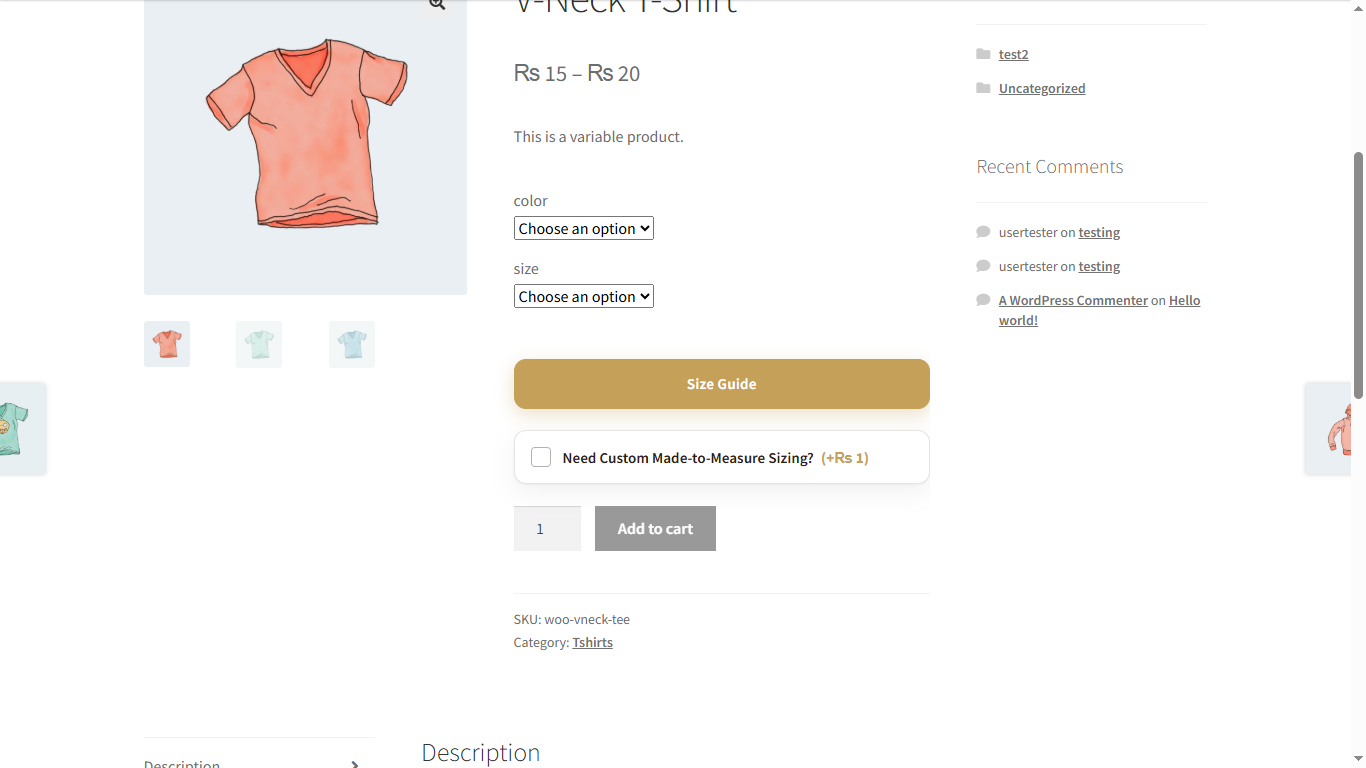
Variation tip: Size attribute terms must match chart labels. If the chart says Medium but the attribute is M, map names consistently.
Made-to-Measure
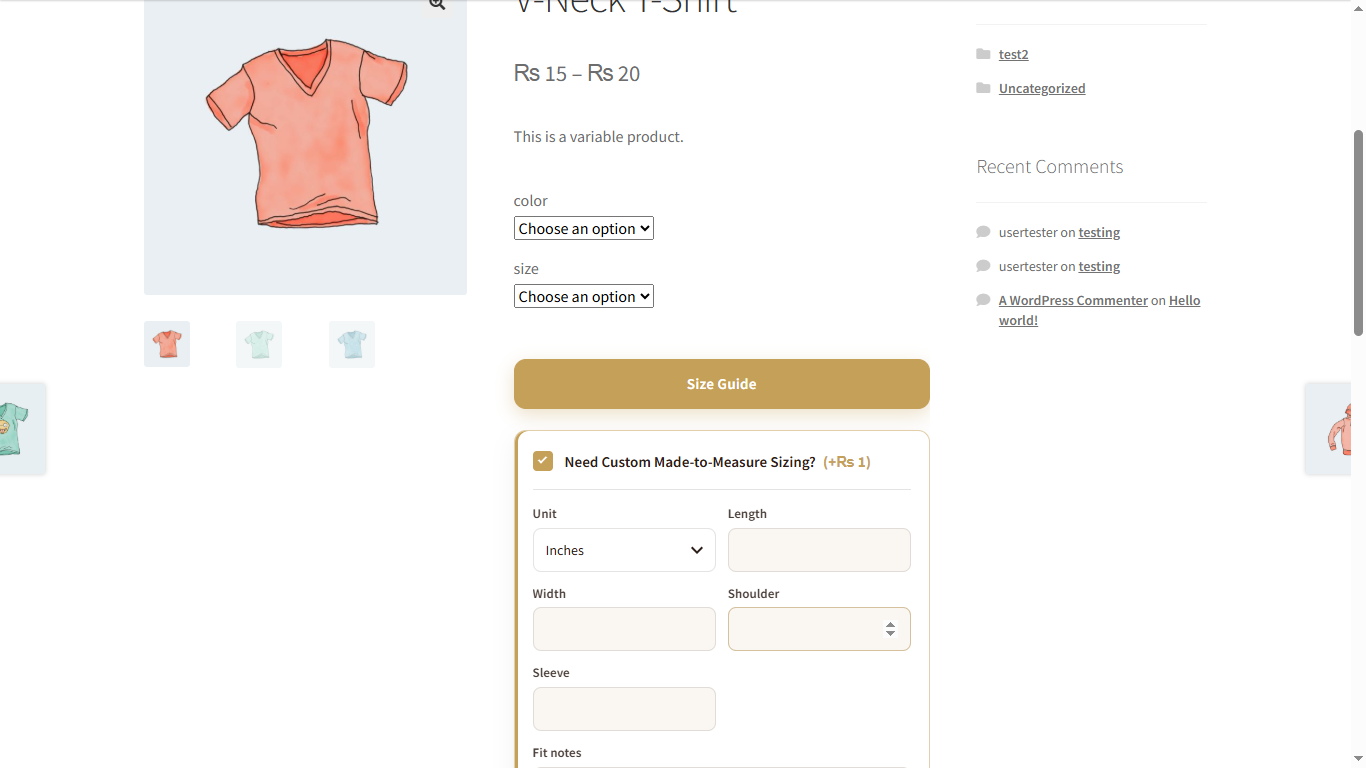
Optional upsell fields collect custom measurements on the product page. Values are stored with the cart line and appear on the order.
- Free: fixed fee amount.
- Pro: fixed fee or percentage of product price, plus extra fields and fee rules.
Shortcode & block
[csfw_size_guide] — prints the size guide control. Optional attribute: product="123".
Gutenberg: insert the Size Guide block into a product template or page.
Use these when classic theme hooks do not show the button (block themes, custom builders).
Deep link: Append ?csfw_open=1 to a product URL to open the Size Guide when the page loads — useful for email campaigns and support replies.
CSV import / export
Export chart rows to CSV, edit in Excel or Google Sheets, then import back into the rule. Useful for large size tables. You can also start from a built-in template, then customize.
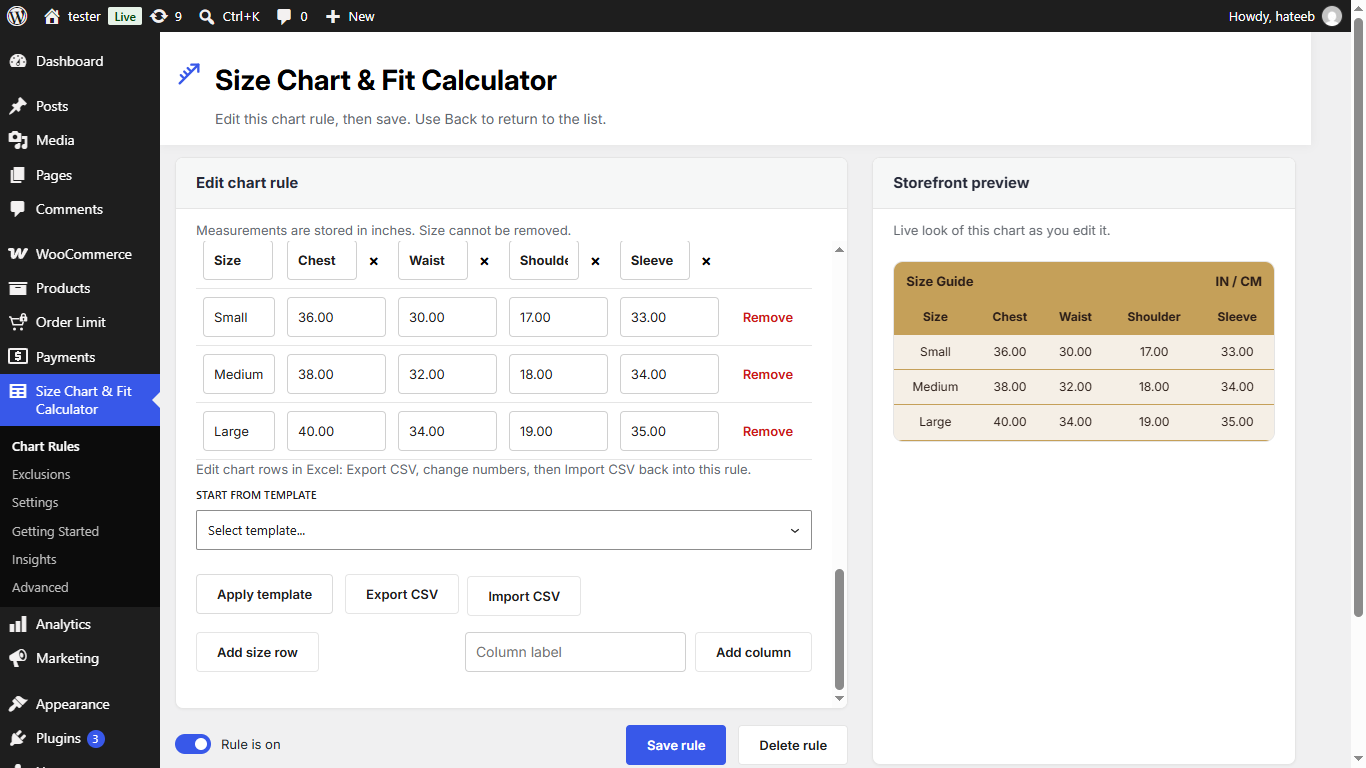
Always Save rule after import. Spot-check the live Storefront preview before publishing.
Pro features
- Unlimited Chart Rules
- Per-rule appearance: popup / inline / tab, button placement, table colors
- Country and product-tag targeting
- Custom chart columns
- Made-to-Measure fees as fixed amount or percentage
- Extra measurement fields and fit notes
- Garment / body scan helpers
- Saved measurement profiles
- Order measurements metabox (HPOS compatible)
- Insights for sizing and upsell activity
Free vs Pro
| Feature | Free | Pro |
|---|---|---|
| Chart Rules | Up to 3 | Unlimited |
| Find My Fit + Use this size | Yes | Yes |
| Inches / CM | Yes | Yes |
| CSV import / export | Yes | Yes |
| Shortcode + block | Yes | Yes |
| Made-to-Measure fee | Fixed | Fixed or % |
| Appearance controls | — | Yes |
| Country / tag targeting | — | Yes |
| Scans, profiles, Insights | — | Yes |
| Install model | Free plugin | Standalone Pro |
SEO & conversion best practices
A clear size experience improves conversion and can reduce bounce on product pages.
On-page conversion
- Place Size Guide where shoppers look before Add to cart.
- Use readable size labels that match your variation names.
- Keep charts accurate — wrong numbers destroy trust faster than no chart.
- Offer Find My Fit on variable apparel; keep Made-to-Measure for custom SKUs.
- Use ?csfw_open=1 in ads or “Need help with size?” support macros.
Discovery language (natural, not stuffed)
Naturally mention phrases shoppers search for: size chart, size guide, fit calculator, find my size, inches to cm size chart, made to measure clothing, WooCommerce size guide. Do not keyword-stuff product titles — keep copy human and accurate.
Technical hygiene
- Ensure the Size Guide is reachable without blocking core content.
- Keep product images and size data consistent across variants.
- Avoid duplicate conflicting charts on the same SKU.
- Test mobile: the modal should be readable on small screens.
Troubleshooting
- No Size Guide button — Confirm a Chart Rule is On and assigned to the product/category. On block themes, add [csfw_size_guide] or the Size Guide block. Check Exclusions.
- Wrong chart — Check rule assignment, exclusions, and (on Pro) country/tag targeting.
- Use this size does nothing — Product must be variable with a size attribute whose terms match chart size labels.
- Find My Fit seems off — Verify chest/waist/hip columns and that measurements are entered in inches in admin.
- Made-to-Measure fee missing — Confirm the upsell is enabled, fee amount is set, and the shopper checked the custom sizing option before Add to cart.
- Pro vs Free both installed — Keep Pro only; Free is deactivated automatically when Pro runs.
- Modal opens but table empty — Edit the Chart Rule, add size rows with values, Save rule, then hard-refresh the product page.
FAQ
Does this replace a basic size chart plugin?
Yes for most apparel stores — you get the chart plus Find My Fit, Use this size, and Made-to-Measure.
Does Find My Fit work on variable products?
Yes. After a recommendation, Use this size selects the matching size attribute when it exists.
Is it compatible with block checkout and HPOS?
Yes. The plugin declares compatibility with custom order tables and cart/checkout blocks.
Can I open the guide from an email link?
Yes. Add ?csfw_open=1 to the product URL.
Where do I get support?
Contact Centrioz support · support@centrioz.com